How to install Rhino MCP for Claude, Codex, and other AI assistants
A safe, client-specific installation and verification path for connecting McNeel's Rhino MCP to Claude, Codex, Copilot, Gemini, or a local model—with a clear distinction from Raven.
Direct answer
Answer
Install Rhino MCP from McNeel, connect it to a supported AI assistant using that assistant's official setup path, open Rhino, and run a small read-only test before authorizing geometry, command, script, or Grasshopper actions.
01
Confirm the official integration
Rhino MCP is McNeel's free MCP platform for connecting Rhino and Grasshopper to supported AI assistants. McNeel currently documents setup paths for Claude Desktop, Claude Code, GitHub Copilot, OpenAI Codex, Gemini CLI, and local models.
Confirm that you are using the official McNeel documentation and repository before installing anything. Record your Rhino version, operating system, selected AI client, and the project copy you will use for testing.
- — McNeel documentation
- — Supported AI client
- — Rhino version
- — Disposable test file
02
Install for the AI client you actually use
Open McNeel's Getting Started path and choose your AI assistant. Follow that client-specific connector or configuration process, then complete the Rhino-side plug-in installation described by McNeel. Restart the applications if the guide requires it.
Do not copy a configuration from an unrelated client: desktop apps, command-line agents, editors, and local models can store MCP settings differently.
03
Verify the connection with a reversible test
Open a blank or copied Rhino file and begin with a small inspection request. Confirm that the assistant can identify the active document and selected objects before allowing it to create geometry or run commands.
Then test one reversible action, inspect the result in Rhino, undo it, and review any log or tool-call record your client exposes. This establishes that the connection, units, selection context, and rollback path work.
- — Read current document state
- — Run one bounded action
- — Inspect geometry and units
- — Undo successfully
04
Do not confuse Rhino MCP with Raven
Rhino MCP is an MCP connection that lets an external AI assistant work with Rhino and Grasshopper. Raven is a separate Rhino 8 plug-in installed through Rhino's Package Manager and used inside Rhino and Grasshopper. They are different products and should not be described as the same installation path.
Choose the integration that fits the intended client, data boundary, and workflow. If a Prompt references either tool, it should name the exact dependency and tested version.
05
Add project safeguards before real work
For production use, work from versioned project copies, limit each instruction to a named object set, define units and tolerances, and require a preview or verification step before baking, deleting, exporting, or overwriting work.
A successful connection proves that tools can communicate. It does not prove that a generated model operation is correct, coordinated, buildable, or appropriate for the project.
REVIEW BEFORE USE
Known limitations
- Installation steps and supported clients can change; follow McNeel's current client-specific instructions and review the permissions requested by each connection.
- AI-generated Rhino geometry, commands, scripts, and Grasshopper definitions require review in a copy of the project before use in production work.
PRIMARY SOURCES
References used for this guide
These guides support Prompt evaluation and do not replace project-specific advice, code interpretation, consultant coordination, or qualified professional review.
Reviewed by archiPrompt Studio · Editorial + product review
RELATED ARCHITECTURE PRODUCTS
Put this guide into practice
BIM + data operations Prompt
Rhino-to-Grasshopper Automation Spec
Specify safe, non-destructive Rhino–Grasshopper automation with review gates using Raven inside Rhino 8 and Grasshopper.
- Output
- Rhino-to-Grasshopper Automation Spec Raven prompt
- Tested
- Raven
- Rhino 8
- Grasshopper
- Price
- Checking access…
Design + visualization Collection
Reer Rhino + Grasshopper Workflow Collection
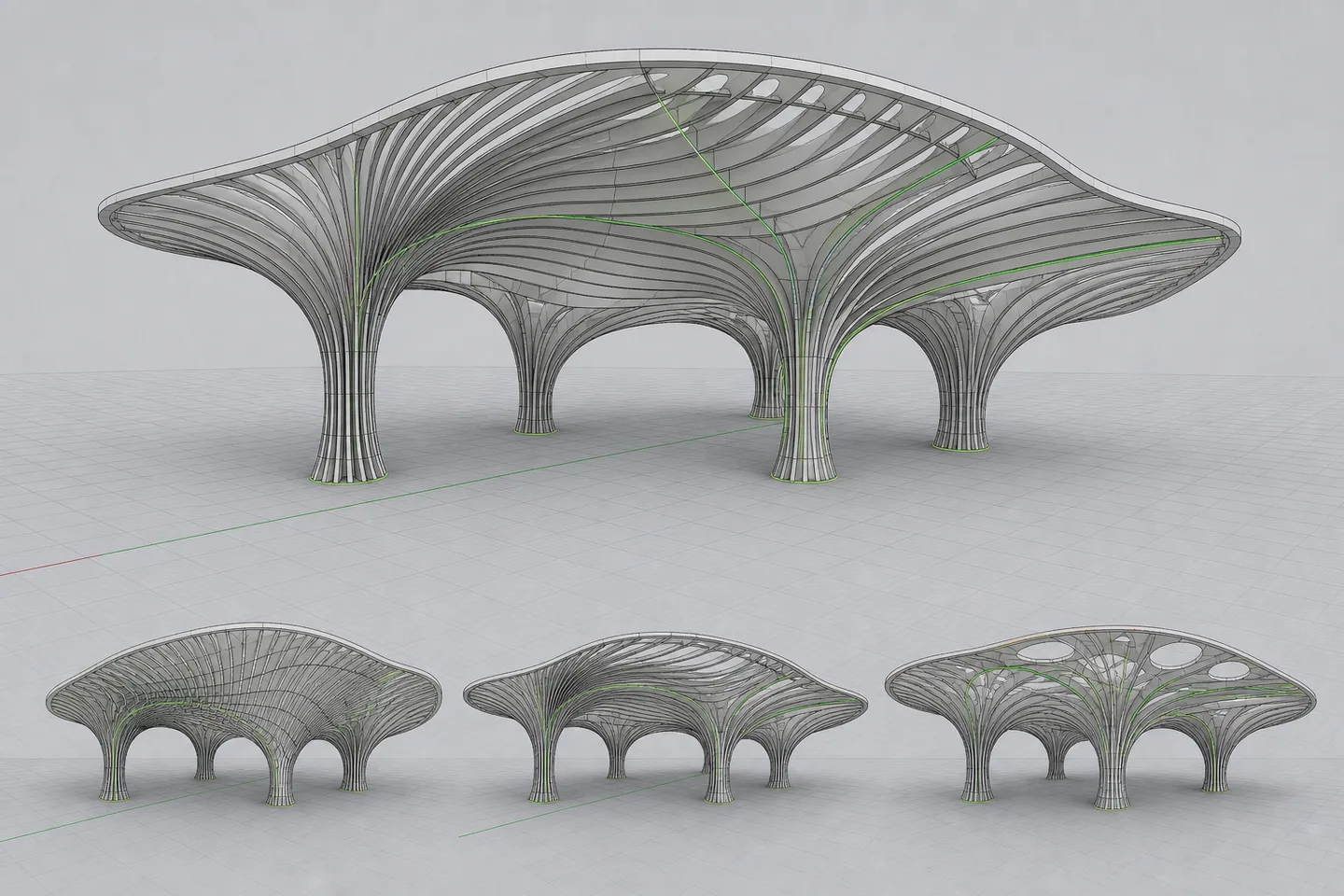
Four model-aware prompt systems for Reer's live Rhino and Grasshopper workflows: parametric cladding, clean definitions, batch edits, and synchronized visualization.
- Output
- Collection router prompt
- Tested
- Reer
- Rhino 8
- Grasshopper
- Price
- Checking access…
BIM + data operations Collection
Grasshopper Scripting
Eight linked Raven prompts for building, debugging, scripting, rationalising, and automating Grasshopper workflows.
- Output
- 8 linked standalone Raven prompt systems
- Tested
- Raven
- Rhino 8
- Grasshopper
- Price
- Checking access…
Compare the wider task inventory on the BIM + data operations task page.